
Devices
The Devices tab lists every screen linked to your company.
List columns
| Column | Meaning |
|---|---|
| Status | Green / red icon depending on whether the agent has recently heart-beat |
| Name / ID | Device_USERNAME_RDSXXXX and its short RDSXXXX code |
| Company / branch | Who owns it and where it is |
| Playlist status | "Downloading", "Download finished", "Playing", "Not started" (tooltip on hover) |
| Last heartbeat | Last time the agent talked to the server |
| Coverage | Connection quality reported by the agent (where applicable) |
| Actions | Dropdown menu with operations |
Platform icon
In the version column, an icon shows the agent's system: Android, Linux or Windows. Linux devices with an ARM processor show the Raspberry Pi logo (or a chip icon for other ARM boards). Hover over it to see the architecture and model, for example ARM64 · Raspberry Pi 5.
Filters
By company, branch, date, or free text (searches name, RDSXXXX, location, department). Filters persist as you navigate.
"Actions" menu
Each row has two dropdowns:
Actions (user)
- Device panel — under Settings: Web/Playlist mode, home URL, whitelist, admin password. Detail.
- Send message to support — files an incident.
- Logs — shows the agent's latest logs. Useful for diagnostics.
- Screenshot — asks the device for a JPEG capture of what it is showing. Opens a modal with a spinner; within ≤60 s the image appears inside the dialog and is saved to the device card. If the device is offline, the request stays pending and uploads when it returns. Detail.
- Edit — name, location, company/branch, notes.
- Unlock token — each screen is tied to the device that paired it. To move the slot to another device, or after reinstalling the app, press Unlock token and confirm: the token is released and Link screen (QR) appears so you can pair the new device, which takes over the slot. Available to users who may modify screens, on their own company's screens; not available while the licence has expired.
- Delete — removes the device from the plan (frees the slot).
Admin (Promotienda only)
Internal support actions: manual enable/disable, withdraw, connect, attend incident, etc.
Adding a device
"+ Add" button in the top-right.
- If your plan has free slots, the device is created immediately at no cost.
- If not, the system asks you to expand the plan: pay the proration with your card and both the new slots and the devices get created.
- You receive a confirmation email with the list of created IDs and, if there was a payment, the PDF invoice attached.
Important: a newly created device exists only in the panel. To play content you need to install the agent on the hardware and pair it with the assigned ID. If you bought the device from Promotienda this is already done.
Buying a device
"Buy device" button. Opens the catalogue with the option to ship directly to your premises with the playlist and WiFi preconfigured. Includes 1 year of free RDS licence.
Shipment status
When you buy devices from the catalogue, during the shipping period they appear with a "Shipment pending" label and the user actions are disabled. Promotienda marks them as shipped when they leave the warehouse — at that point the actions re-enable and you receive a notification email.
Device card information
Hovering over a device opens a card with its real-time data. Relevant rows:
| Row | Meaning |
|---|---|
| IP | Last public IP seen by the server |
| Version | Installed agent version (EOL badge if below the minimum supported: 2.0.0 on Android, 1.0.0 on Linux) |
| Coverage | Connection quality reported by the agent |
| Model | Hardware model. Android: Build.DEVICE (e.g. emu64xa, RMX2061). Linux: DMI name (VirtualBox, ThinkPad X1, etc.) |
| Android | Android version (Android agents only) |
| OS | OS distribution and version (Linux agents only, read from /etc/os-release. E.g.: Debian GNU/Linux 13 (trixie)) |
| Uptime | Time since last boot. Useful for spotting unexpected reboots |
| Last heartbeat | Time of the last heartbeat received |
The Android agent uses
SystemClock.elapsedRealtime()(includes deep-sleep time). The Linux agent reads/proc/uptime.
Updating the agent
In Device panel → Agent version you choose which version the screen should update to.
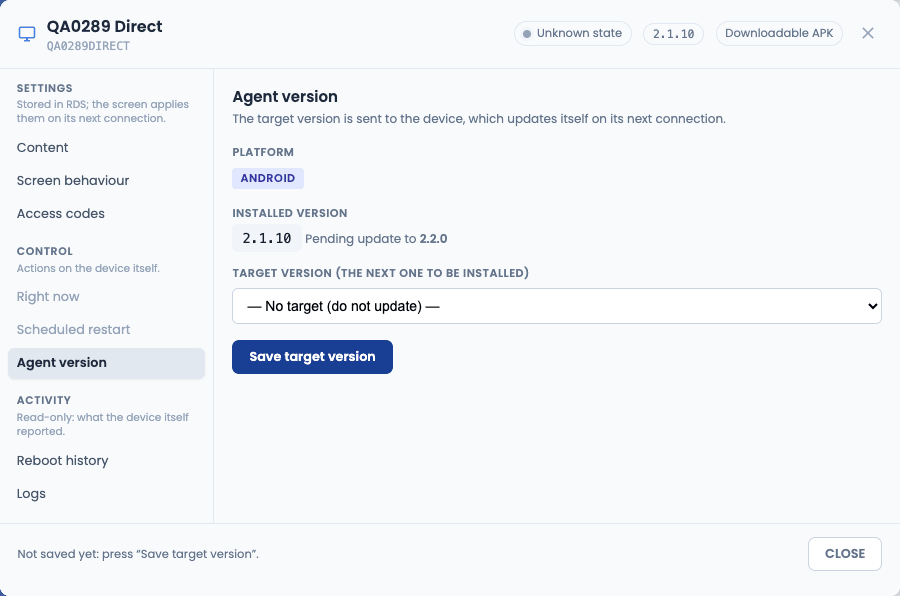
- Under Target version (the next one to be installed) pick a published version, or — No target (do not update) —.
- Press Save target version. Nothing is stored until then: the panel footer says Not saved yet and, after saving, shows the server's answer, or the reason if it refuses (for example, an agent too old to update remotely).
- The screen downloads and installs the version on its next connection. Meanwhile you see Pending update to X next to the installed version.
On Android, installation is only automatic on rooted devices. On the others (non-rooted tablets, phones and TVs) Android shows its install window over the content and someone at the screen has to press Install. On Android 8 or later, Install unknown apps must be allowed for Digital Signage RDS in Android settings beforehand. If the install is declined or fails, it is not retried until you choose another target version.
- Available on the Android agent 2.0.0 or later and on the Linux and Windows 2.0 agents.
- If the stored version is no longer published, it shows as X (no longer published).
- If you close the panel with unsaved changes (in Settings, Scheduled restart or Agent version), RDS asks "This device has unsaved changes. Close and discard them?".
Screenshots
From Actions → Screenshot you can ask the device for a JPEG of what it is showing on screen at that moment. Works on Android, Linux and Windows.
How it works
- Pressing the option opens a modal dialog with a spinner and the message "Screenshot requested. Waiting for device…". The grey counter shows elapsed seconds.
- The server marks the request (
screenshot_pending=1) and injects it as a flag in the next heartbeat response to the agent (≤ 60 s). - The agent:
- Linux captures with
scrotfrom display:0(everything visible, including the WebKit browser of kiosk mode or the playlist player). - Android captures with
PixelCopythe foreground Activity window (PlayerActivityorKioskBrowserActivity). This includes GPU-accelerated WebView/Surface content.
- Linux captures with
- The JPEG (quality 70, ~150-400 KB typical) is signed with HMAC-SHA256 v2 and POSTed to
/suport/upload_screenshot.php. - The server verifies the signature, saves the image as
/screenshots/<num_serie_gprs>.jpg(always only one image per device, overwritten), clears the flag and stampsscreenshot_at. - The dialog, polling every 4 s, detects the new image and replaces the spinner with a clickable preview (opens the original image in a new tab).
Timing and retries
- Under normal conditions, the image appears in 5–60 s.
- If the device is off, has no network, or the agent is stopped, the dialog times out at 120 s and shows: "Device did not respond in time. The request stays pending — if it comes back online the image will be uploaded." The request is not cancelled: the moment the agent next heartbeats, it picks up the flag and uploads the image. You only need to refresh the device card to see it.
- On Android, capture only happens while the kiosk Activity is in the foreground (
onResume). If the device is locked or showing another app, the capture waits for the next return to the kiosk.
Privacy and permissions
- Only users with Management > Devices > Modify permission (or Admin > Devices > Create) can request captures.
- The image is served only through the panel and tied to the device's
num_serie_gprs. There is no public endpoint to list them. - Each new capture overwrites the previous one — only the most recent is kept.
Viewing the image later
If you close the dialog, the last capture is still accessible:
- In the device card (click the name or the ID) there is a "Screenshot" section with the image and the date/time it was taken.