
Dynamic templates
Design screens that update themselves with your own data: prices and menus from an XML or JSON file, news from an RSS feed, weather and traffic. Change a price in your own system and the screens show it, without touching the template again.
Dynamic templates are included in your plan at no extra cost. You will find them in the menu under Content › Dynamic templates.
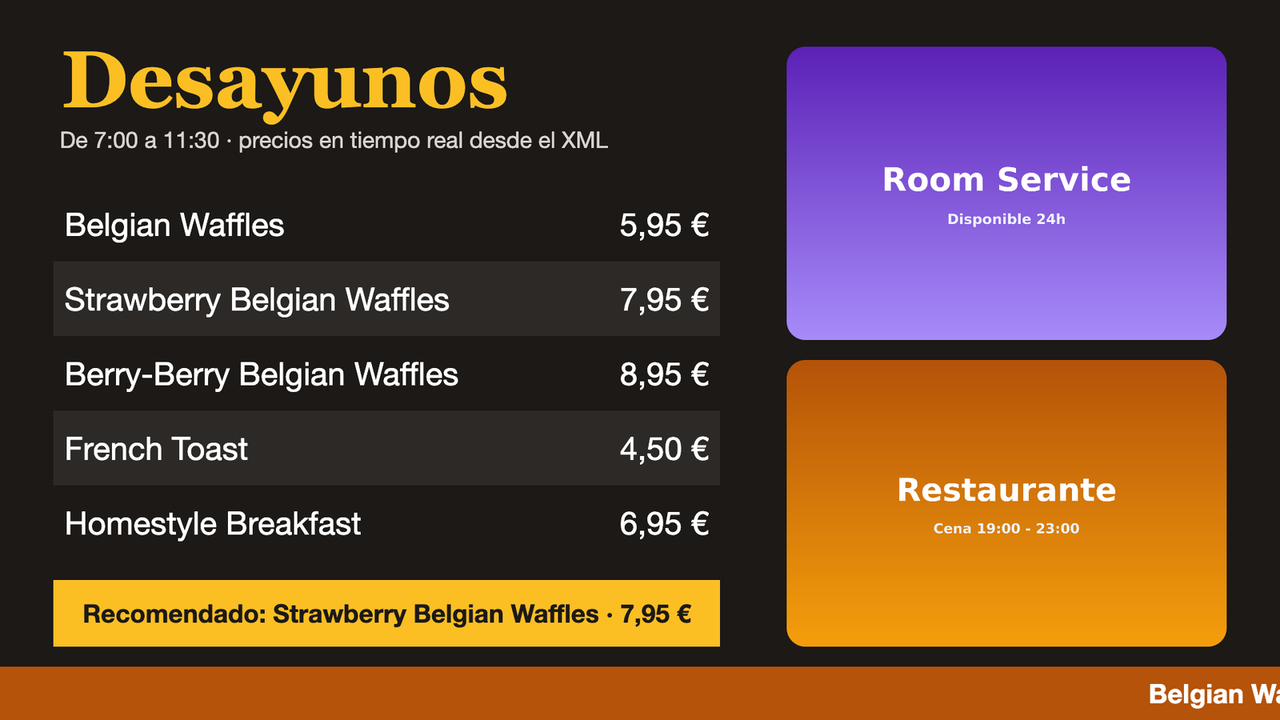
How it works
- Add a data source: the address of your XML, JSON or RSS feed. RDS reads it and turns every value into a variable.
- Create a template and design it in the editor: text with variables, images, product lists, weather and traffic.
- Show it on your screens: full screen with the Templates mode, or inside a playlist.
Data sources
On Dynamic templates, click Add source and fill in:
- Name: so you can recognise it in your templates.
- XML, JSON or RSS address: a public address starting with
http://orhttps://. - Document type: Detect automatically almost always works. Choose XML, JSON or RSS or Atom if you want RDS to accept only that type. With XML, an RSS feed is read like any other XML file, with its own names.
- Refresh every (minutes): from 1 to 1440 (one day). The default is 15.
- Authentication header (optional): if your server asks for a key, type the header's name (for example
Authorization) and its value. The value is never shown again in the panel. It is only sent to your source's own server, and never overhttpwhen the source ishttps.
Click Save and read now. RDS reads the document and shows you what it found. Read now reads it again whenever you like.
Save and read now and Read now count as reads from the panel: at most 60 an hour for your whole company. When you reach the limit, the source is still saved, the page tells you why it was not read, and you can try again later; the screens keep showing the last good data.
Only use data and feeds you have the right to show on public screens.
When the screens change
The source is read again at most once per interval, and the screens ask for new data every 30 seconds to 5 minutes. So a price you change in your own system reaches the screens within the source's interval plus a few minutes at most. Changes to the template's design also arrive by themselves.
If the source fails
If a read fails (the server does not answer, the document is not valid, it takes too long), the screens keep showing the last good data. The source's page shows the error and the date of the data, and the Dynamic templates list flags the failing source. When the source is back, the screens catch up by themselves.
Variables
Every value in the document has its own variable, named after its path. For example, the price of the first product, breakfast_menu.food[0].price, is called food_1_price (products are counted from 1). Attributes in an XML file are variables too.
In a template's text, write the variable between double curly brackets: {{food_1_price}}. You can mix it with your own words: Today: {{food_1_name}} for {{food_1_price}}.
You can rename variables on the source's page and click Save names. If you do, check the templates that use the old name. Names you change are kept when the source is read again, and any new values get their automatic names.
Lists
Anything that repeats in the document (the dishes on a menu, the items in a catalogue, the stories in a feed) is a list. Lists found shows each one with its number of rows and its fields (name, price, description...). A list is shown with the editor's List block: one row per product, which grows or shrinks by itself when your data changes.
RSS and Atom feeds
RDS reads RSS 2.0, RSS 1.0 and Atom feeds and always gives them the same names:
- the channel:
channel_title,channel_description,channel_link,channel_imageandchannel_date; - the list
items, one row per story, with the fieldstitle,description,link,date,image,authorandcategory.
The text arrives without HTML, the date is written in each screen's language, and each story's image is taken from the feed itself. Up to 100 stories are read.
A new template that uses an RSS feed starts out as a ready-made news screen: the channel title, the latest stories with their images, and a ticker with the headlines. You can change it like any other.
Templates
Click New template and choose its name, its format (Landscape 1920×1080 or Portrait 1080×1920) and its data source. The source is optional: a template without one can still show text, images, weather and traffic.
The list of templates shows a thumbnail of each one. Click the thumbnail or Preview to see it exactly as the screen will show it, with today's data.
The editor
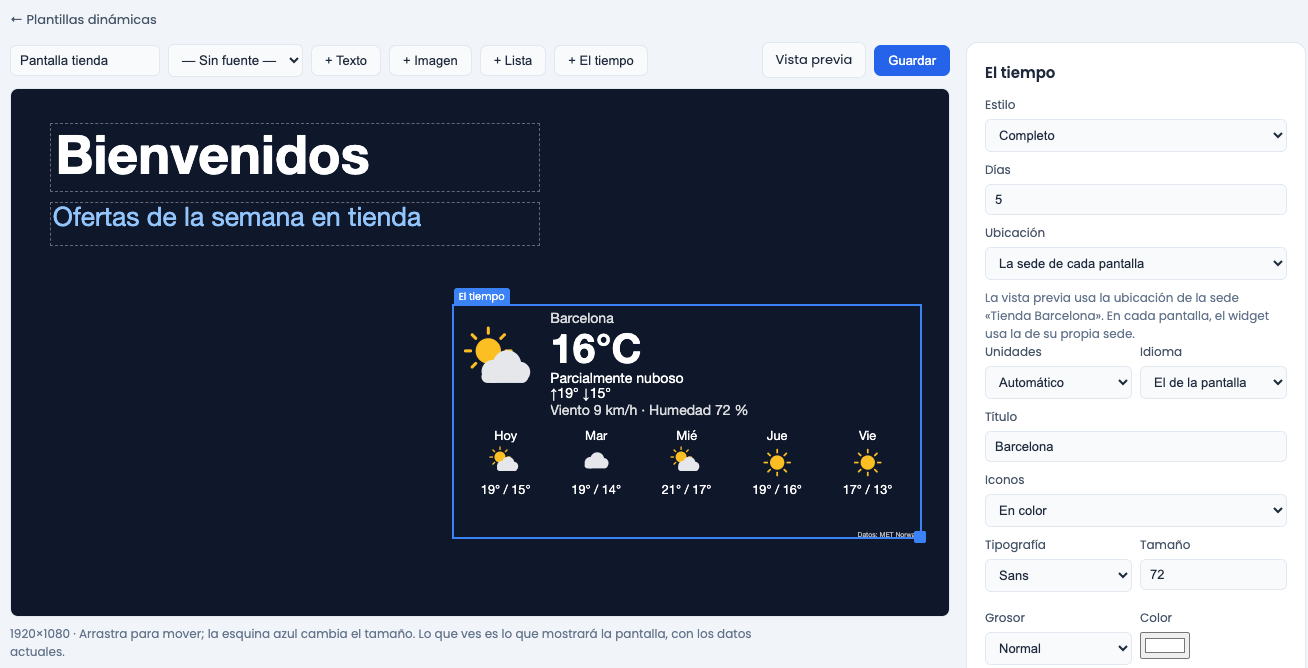
- The toolbar holds the name, the data source and the elements: + Text, + Image, + List, + Weather and + Traffic. Click them, or drag them onto the canvas to drop them where you want.
- Drag an element to move it; the blue corner resizes it. The right-hand panel shows its properties, its position and size, and the Front, Back, Duplicate and Delete buttons.
- Click the canvas background to change the background colour and background image.
- The Variables panel lists the source's variables with their current values. Search them, and click one to insert it into the selected text.
- What you see on the canvas is what the screen will show, with today's data and your formatting applied.
- Click Save. Screens already showing the template update by themselves.
A template can hold up to 60 elements. The editor needs a computer screen at least 1024 px wide.
Text
Write the text with any variables you like. You choose the typeface (Sans, Serif, Mono, Condensed or Rounded), size, weight, colour, block background, alignment, vertical position and shadow.
Value format decides how the numbers in your data are written:
- As is: exactly as they come in the document.
- Number: with the decimals you choose (0 to 4).
- Currency: with decimals, the symbol before or after and, if you like, a decimal comma. So a
5.95in your XML appears as5,95 €or$5.95.
Image
Choose where the image comes from:
- Library: one of your RDS images. Only validated images are offered: an image that an editor or an administrator has not validated yet cannot be used in a template.
- https address: an image published on the internet.
- Source variable: a variable that holds an image's address, for example each product's photo in your catalogue.
Fit decides whether the image covers the block or fits inside it whole, and Corners rounds them.
List
Shows one row per element of one of the source's lists:
- Source list: which of the lists found.
- Rows: how many rows to show (1 to 50). Start at row lets you split a long list across two blocks.
- Columns: each column shows a field, with its width % and its own format. Tick It is an image to show the field as a photo.
- Alternate row colour, as well as the typeface, size and colours of the text.
Animations
Each element can fade in, slide or zoom when the template appears, or run as a ticker (scrolling text). In the editor the elements stand still so you can work; Play animation plays the selected element's animation.
Weather
The Weather block shows current conditions and the forecast. The data comes from MET Norway (the Norwegian Meteorological Institute): no key is needed and it costs nothing.
- Style: Compact (icon, temperature, conditions, high and low), Full (plus wind, humidity and 2 to 8 days) or Strip (now and the next 2 to 8 hours, in one row).
- Location:
- Each screen's location (the default): each screen shows the weather at its own location (Sede). One template serves all your shops. If that location has no coordinates, its parent location's or the screen's own are used.
- A fixed place: search for it, copy it from one of your locations or type its coordinates.
- Units: Automatic (°F in the United States and the few other countries that use it, °C everywhere else), °C or °F.
- Language: the screen's or a fixed one of the 8 languages.
- An optional title, and icons in colour or in the text colour.
The widget prints "Data: MET Norway" in small type, as the data's licence requires. The forecast is refreshed at most every 30 minutes; if the screen loses its connection, it keeps moving through the last forecast it received.
A place chosen with Google search follows Google's terms, which do not allow its coordinates to be kept for more than 30 days: the Traffic widget page explains how.
Traffic
The Traffic block has two providers:
- DGT (Spain, free): incidents near the place (roadworks, accidents, closures, queues) on Spain's state roads. It does not cover Catalonia or the Basque Country.
- Google (your key): driving time with current traffic to up to 5 destinations. It needs your own Google API key, and the requests are billed to your Google account.
All the details, the costs and how to add the key are on the Traffic widget page.
Showing a template on your screens
Full screen: the Templates mode
- In Devices, open the screen and go to Content.
- Under Mode, choose Templates.
- Pick the template. The preview shows it with today's data.
- Click Save.
The screen shows the template full screen and refreshes its data by itself. This works on screens running the current RDS app for Android, Linux and Windows; the Android v1 app does not have this mode.
In a playlist
In the playlist editor, the Templates tab sits next to Videos and Images. Add a template with its time on screen (3 to 3600 seconds) and order it like any other item, among your videos and images.
To play templates inside a playlist, a screen needs the RDS app for Android 2.6.2 or later, or the RDS app for Linux and Windows 2.1.3 or later. The Android v1 app does not play them. A screen on an older version shows no template: it skips them and carries on with the rest of the playlist. While you edit the playlist, before you save, the editor warns you and tells you which screens those are and why. A playlist that holds only templates shows nothing on them: update their app from RDS, or use the Templates mode.
Deleting a template
- A template that is in a playlist cannot be deleted: take it out of the playlist first.
- When you delete a template shown in Templates mode, the confirmation tells you how many screens show it. Those screens go black until you choose other content.
New address
Each template has its own address, the one Preview opens. If that address has reached someone who should not have it, click New address in the list of templates: the current address stops working at once, and the screens of your company that show the template get the new one at their next sync. If you copied the address anywhere else, you will need to change it there.
API keys
The API keys panel, at the foot of the Dynamic templates page, holds your company's Google key for the traffic widget's travel times. It is the only key you need, and only if you use Google: data sources, weather and DGT traffic work without a key. See Traffic widget. Only an Administrator can add, change or delete it; the other roles see whether one is set.
Who can use them
It depends on each user's role in your company:
- Administrator and Content editor: create and edit sources and templates, use New address, delete them, and show them on screens, in Templates mode or in a playlist.
- If a partner manages your account, its users (administrators and technicians) can do everything with templates that an Administrator can.
- API keys: only an Administrator can add, change or delete the Google key. The other roles see whether one is set.
- Upload content only and Read only: see the sources, the templates and their previews, but cannot create or change anything.
- A user with access to only some sites sees all of the company's sources and templates, but can put them only on the screens of their own sites. A template shown on a screen of another site is one they can preview but not edit.
Limits
| What | Limit |
|---|---|
| Size of a document | 1 MB |
| Values in a source | 5,000 |
| Refresh every | 1 to 1440 minutes |
| Stories from an RSS feed | 100 |
| Formats | 1920×1080 and 1080×1920 |
| Elements in a template | 60 |
| Rows in a List block | 50 |
| Google destinations in the traffic widget | 5 |
| Time of a template in a playlist | 3 to 3600 seconds |
| Data sources per company | 100 |
| Templates per company | 300 |
| Reads from the panel (Save and read now, Read now) | 60 an hour per company |
| Source refreshes (screens) | 600 an hour per company |
| Place searches (editor) | 300 an hour per company |
For security, RDS only reads public internet addresses (not those on a private network), follows at most 3 redirects, waits at most 10 seconds for an answer, and does not accept XML with a DOCTYPE or entities.